Choosing a part
Which part does which job. Find what the person is doing, then take the part in the table.
Start from the job, not from the part. Most apps are built from the six places in the window below, and the rest of the jobs follow from what a person is trying to do at that moment.
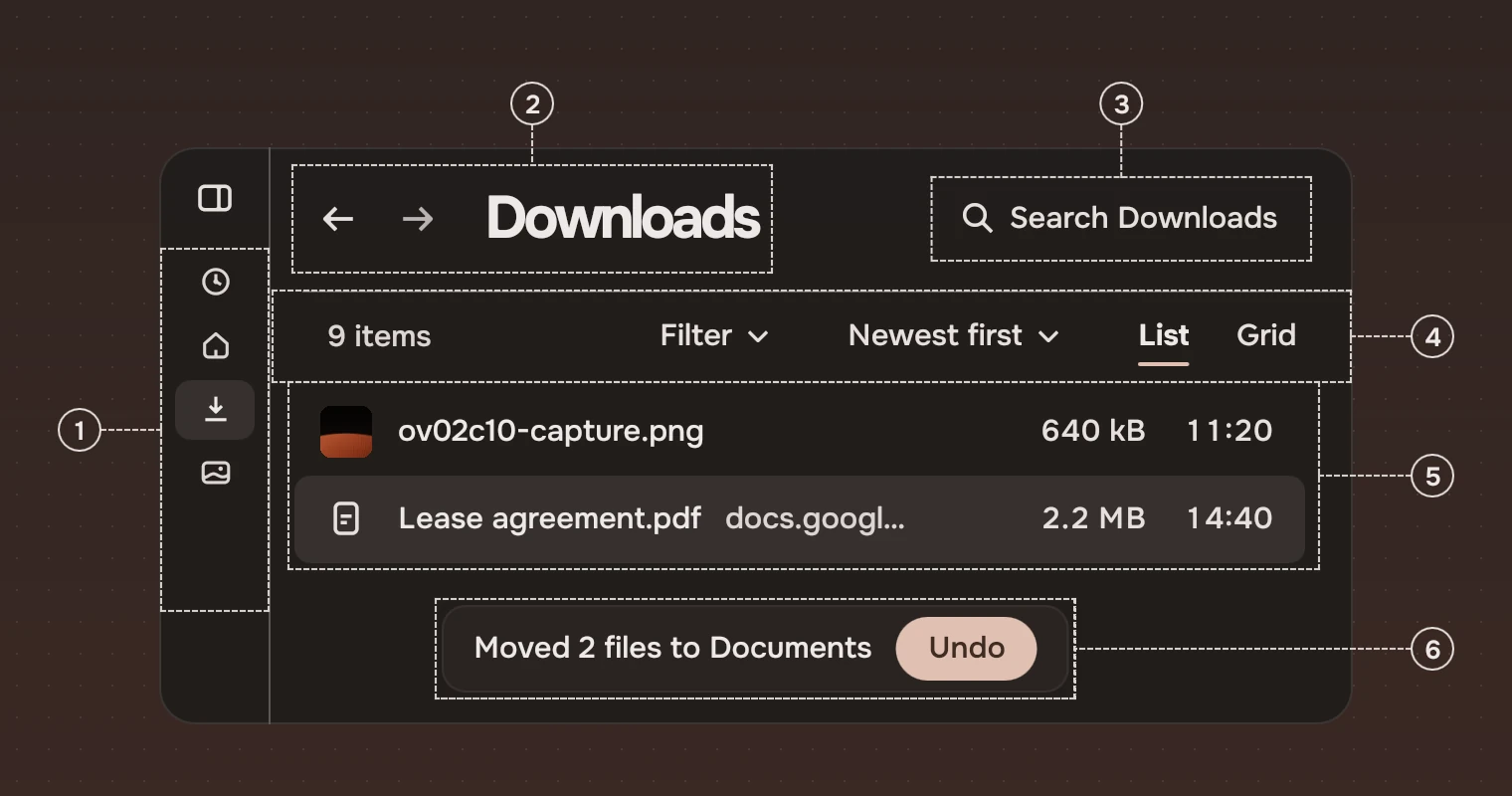
- RailThe app's places, down the left edge. Rail.
- Page headerWhere you are, with back and forward. Page header.
- SearchOne field for the page, named by what it covers. Search field.
- View barFilter, the order and the views of the list. View bar.
- ListThe things themselves, a row each. Row list and list row.
- NoticeWhat just happened, with at most one way back. Notice.
The jobs
| The job | Use | Not |
|---|---|---|
| Show a list of things | Row list of list rows; picture grid for pictures; cover grid for covers with words | Slabs or tabs standing in for a list |
| Choose one of a few | Choices up to six; select for more; tabs for views of one thing | A switch, a check, a menu of two |
| Choose several | Check; a menu with lines that stay open; a list with several rows selected | Choices, which is one only |
| Act on the page | Slab for one or two; actions as words for a list of them | An inline link, a switch |
| Act on one item | The item's menu; the actions in the docked panel | A button on every row |
| Confirm something risky | Do it and offer Undo in a notice; for what cannot be undone, confirm on the Slab or action | A box that asks, or a question for each small thing |
| Say what just happened | Notice; page state; progress | A tooltip, or a box that must be closed |
| Enter text | Field for a line; text area for several; search field for the page | A field for a choice of a few |
| Pick a value | Switch on or off; slider for an amount; select from a list | A slider for a choice of three |
| Move between places | Rail; page header; tabs; inline link; jump index | A menu as navigation |
| Filter and order | View bar with its filter fields; the search field | A filter built into the list itself |
Show a list of things
Things that people scan by name and pick from go in a row list, one list row each: files, songs, contacts. Where the picture is the thing, as in a camera roll, use a picture grid, and where each thing has a cover and a name, as an album does, use a cover grid. Group a long list under section headings and give it a jump index at its edge.
Choose one of a few
Up to six options that should all be seen at once: choices, a column of words with the chosen one marked. More than six, or a choice inside a form row: a select. Views of the same thing, up to four, are tabs. Two states that are really on and off are not a choice: use a switch.
Choose several
Any number may be on, each ticked apart: check, in a form or a settings page. To tick kinds in a filter without the menu closing, give the menu's lines keepOpen. To act on several things in a list, select several rows.
Act on the page
The main thing a page is for, a Slab: forward for the way on, quiet for the rest, risk for what destroys. A list of actions for what is selected is actions as words. A symbol that does something and needs no words is an icon button, which carries a name for screen readers and a tip.
Act on one item
What can be done to one thing in a list goes in its menu, reached by right-click or the Menu key, and in the docked panel that shows the selection. A row carries no button for an action: the list stays a list to read.
Confirm something risky
When a step can be undone, do it and say so in a notice with Undo: nobody has to read a question. When it cannot be taken back, the action itself asks: set confirm on the Slab or the action as words, and its words become "Delete 12 files for good" until a second press does it. A name is edited in its row, not asked for in a box. See Asking.
Say what just happened
A step that is done: a notice at the window's foot, with at most one way back. A page with nothing to show, or one that failed: page state, one sentence and at most one action. A job that takes time: progress, with words beside it. A tooltip is not feedback: it names a symbol while the pointer rests on it.
Enter text
A line to type in, inside a panel: a field. Several lines: a text area. The page's own search is a search field, quiet until used. A choice among known values is not text: use choices or a select.
Pick a value
On or off, taking effect at once: a switch. An amount along a range: a slider. One of a list, in a form row: a select. A tick that is part of a form to be sent: a check.
Move between places
The app's places: the rail. Where you are and the parents in the path: the page header. Views of the page you are on: tabs. A name in a line that opens its own page: an inline link. Within a long list: its jump index, or typing a name.
Filter and order
How the page's content is seen goes in the view bar under the header: the order, the views as words, and the filter's fields. Finding a thing by name is the search field in the header. Do not mix them: search narrows by words, a filter narrows by kind.
Things every part shares
Each part is one Tab stop and shows the keyboard's place with the same focus ring; the washes for rest, pointer, press and selection are on States. The window's ground is window ground.
Experimental, in Tacit.Kit 0.1.
Text and figures: CC BY 4.0. Tacit.Kit: LGPL-3.0 code, OFL fonts. The Tacit name.