Slider
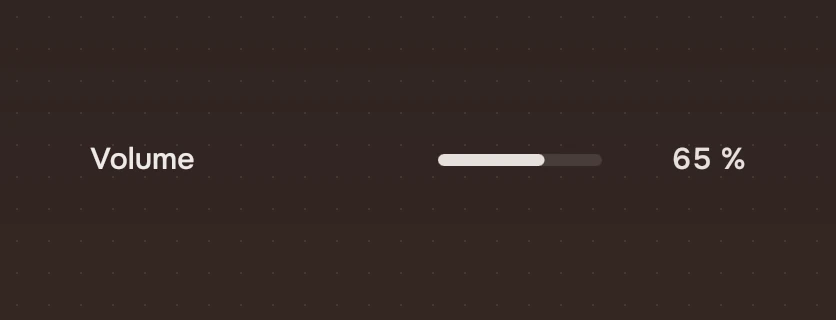
A continuous amount, such as volume or brightness, set by dragging a slim bar. The value is written as a word at its end.
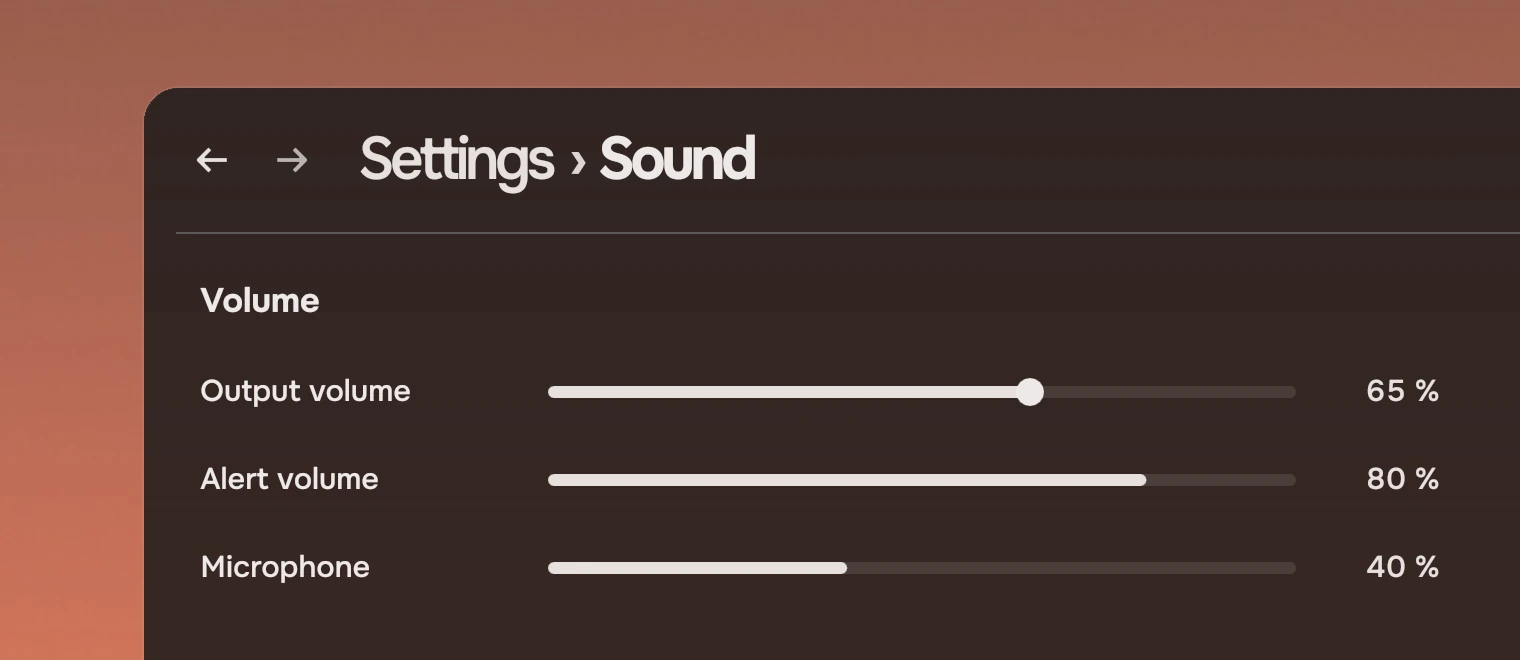
Use a slider for an amount that varies smoothly and whose effect you hear or see as you change it. For two states, use a switch. For a few named choices, use a menu.
Anatomy
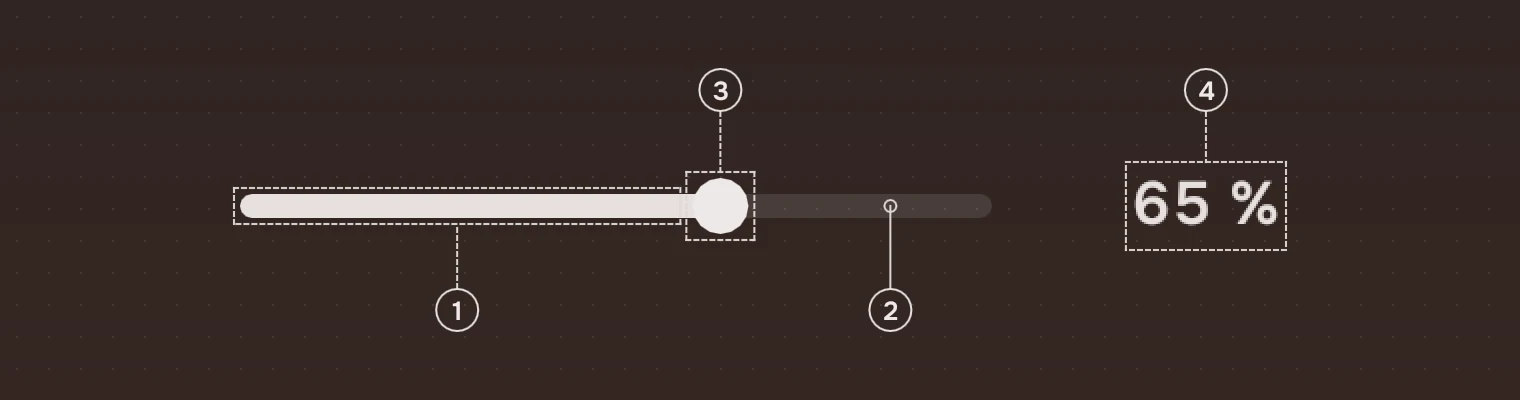
- Reached partFrom the start to the value, in the secondary ink.
- TrackA slim bar of the main ink at 12 %.
- Knob14 pixels in the main ink. It shows only under the pointer, while dragging or with the keyboard.
- WordThe value as a word, right-aligned, in the secondary ink with tabular figures. Optional, but set it when the number matters.
The knob is hidden at rest so a row of sliders stays quiet. The bar alone says the amount.
States
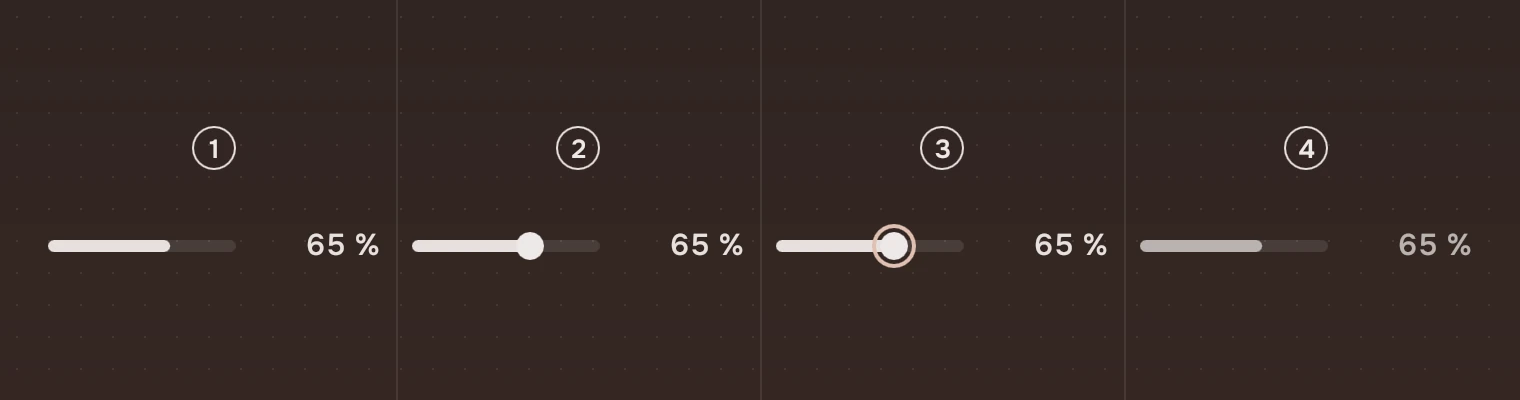
- RestThe bar and the word; no knob.
- Pointer over itThe knob fades in. While you drag it, it stays, a little larger, and the pointer is a closed hand.
- Keyboard focusThe knob and the ring around it.
- UnavailableThe bar and the word in the faint ink. No knob, no response.
Sizes
| Part | Value |
|---|---|
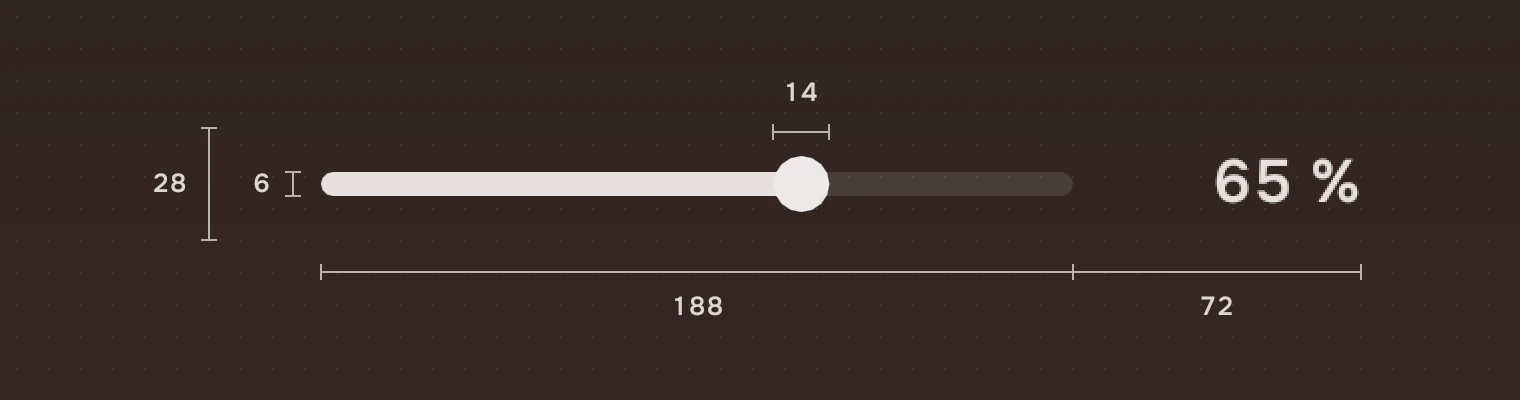
| Height | 28 |
| Width | 260 unless you set it |
| Track | 6 high, a full pill |
| Knob | 14 across |
| Word | 72 of the slider's width at the end, when there is a word; the bar is the rest |
Keys and pointer
| Do this | To |
|---|---|
| Tab | Move the focus to the slider |
| ← → ↓ ↑ | Step down or up by step (0.01) |
| Page Down Page Up | Step ten times |
| Home End | Go to the start or the end |
| Click on the bar | Go to that value |
| Drag | Follow the pointer |
Accessibility
- A slider is a slider named by its
label. A screen reader readsvaluebetween 0 and 1 in steps ofstep, can raise or lower it by one step, and hearswordas the description, so it says "65 %". - The word is the value in plain text, so the amount never rests on the bar alone.
- Unavailable is the faint ink, and the slider leaves the Tab order.
Writing
Write the value so it can be said aloud: "65 %", "2 s", "Medium". Put the setting's name on the row beside the slider, as in a switch row. Use units a person knows.
Do and don't

Code
import Tacit.Kit

Slider {
    width: 320
    label: "Output volume"
    value: audio.volume
    word: Math.round(audio.volume * 100) + " %"
    onMoved: v => audio.volume = v
}
| Property | What it does |
|---|---|
value | 0 to 1. The app sets it when it hears moved |
step | The size of a key step; 0.01 by default |
word | The value as a word at the end; the room for it appears with it |
label | What a screen reader says. Set it |
enabled | False: the faint ink, no response and out of the Tab order |
minimumValue, maximumValue, stepSize | Read only: 0, 1 and step, for a screen reader |
moved(value) | Sent with the new value, clamped to 0 to 1 and rounded to step |
Experimental, in Tacit.Kit 0.1.
Text and figures: CC BY 4.0. Tacit.Kit: LGPL-3.0 code, OFL fonts. The Tacit name.