Focus ring
The one cue that shows where the keyboard is. Every part draws the same ring: 2 pixels of the accent, 2 pixels outside it.
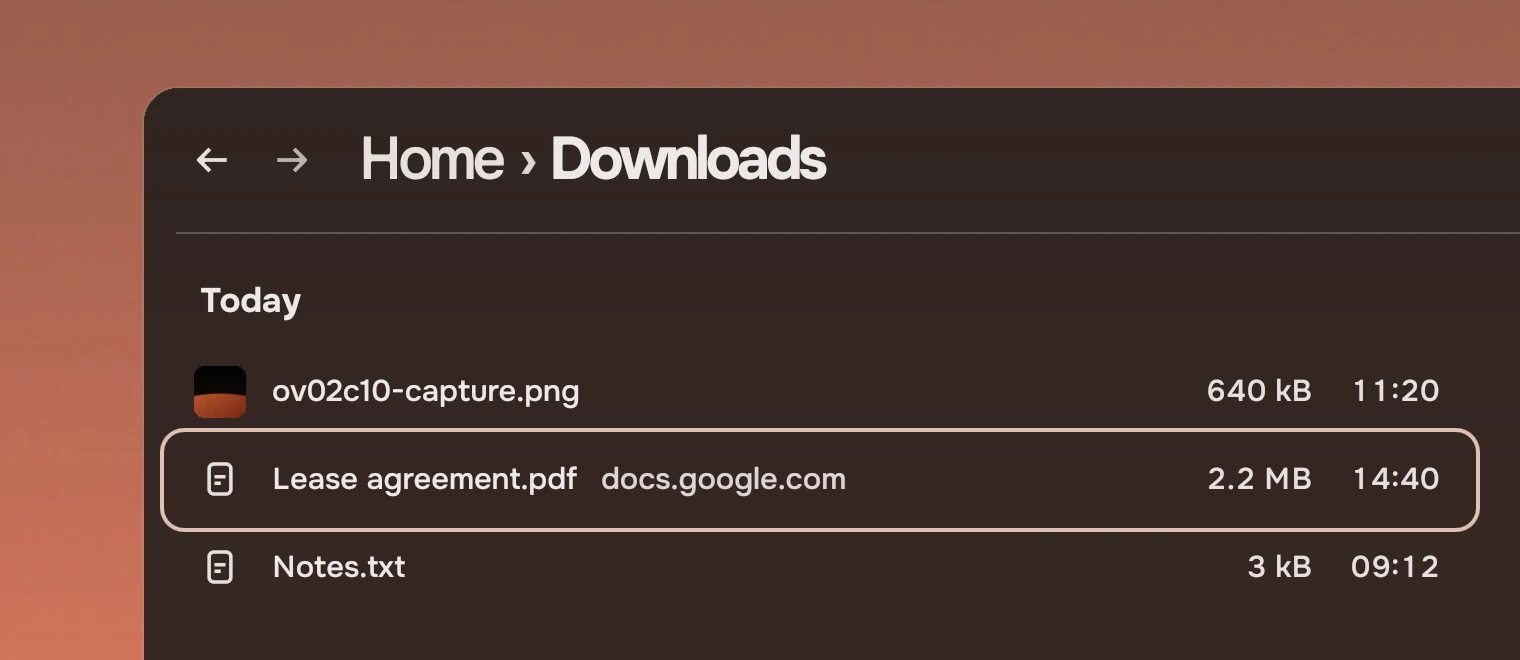
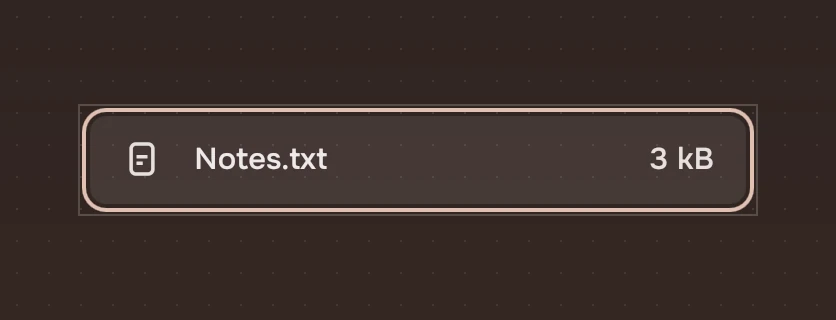
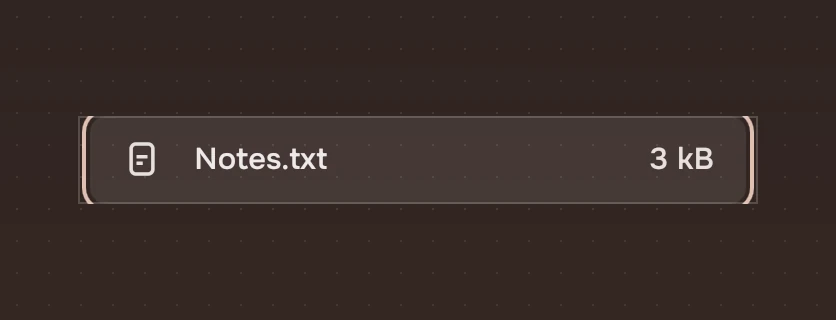
Every kit part already draws the ring, so an app using them adds none. Use FocusRing yourself only in a part of your own, such as a tile or a custom control that takes the keyboard, so that it looks like the rest. Do not draw an outline of your own. Do not use the ring for selection or for the pointer: those are washes. A line of text to type in is a field, which shows its own ring whenever it has the keyboard.
Anatomy
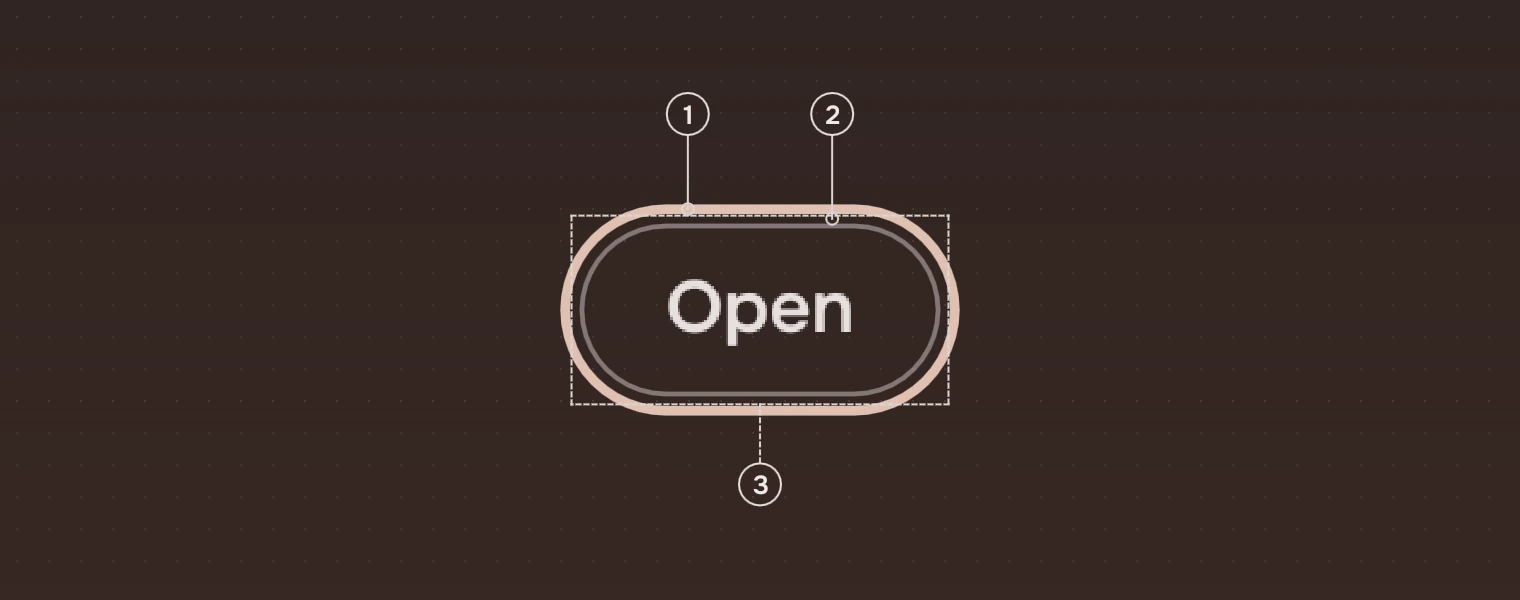
- Ring2 pixels in the accent, round at the corner.
- Gap2 pixels of whatever is behind the part, so the ring never touches the part's own edge.
- PartWhatever has the keyboard. The ring's corner is the part's own plus 4, so it runs parallel to the part's edge.
The ring is drawn outside the part and never over its words, and it appears at once, with no motion.
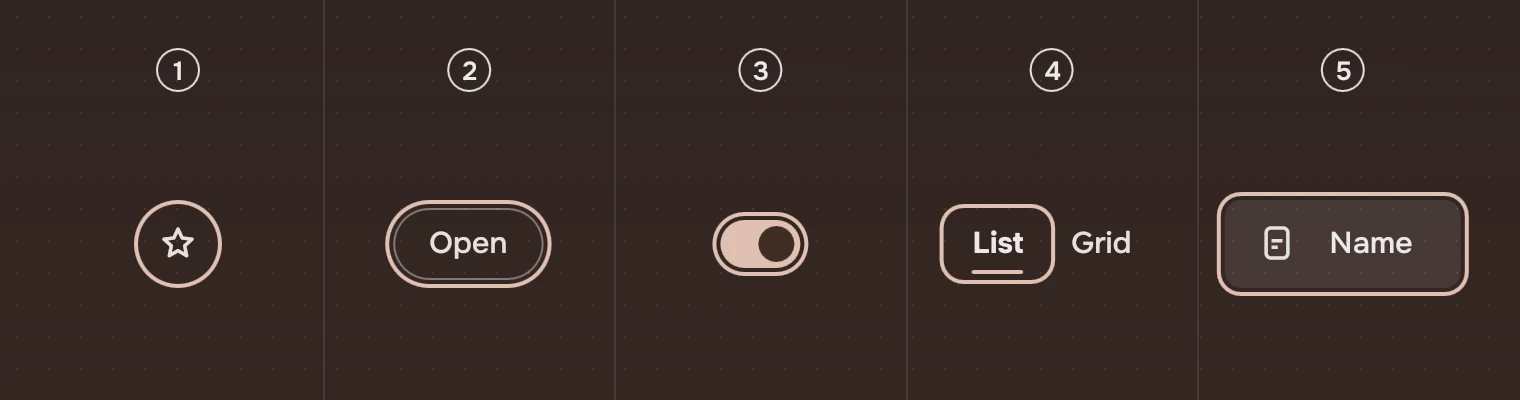
- Icon buttonA circle.
- SlabA pill.
- SwitchAround the track.
- TabsAround the chosen word.
- List rowAround the whole row, over its wash.
Only one part has the keyboard at a time, so only one ring shows. Here five are shown together to compare them.
States
The ring is either shown or not, and the rule is the same for the whole app.
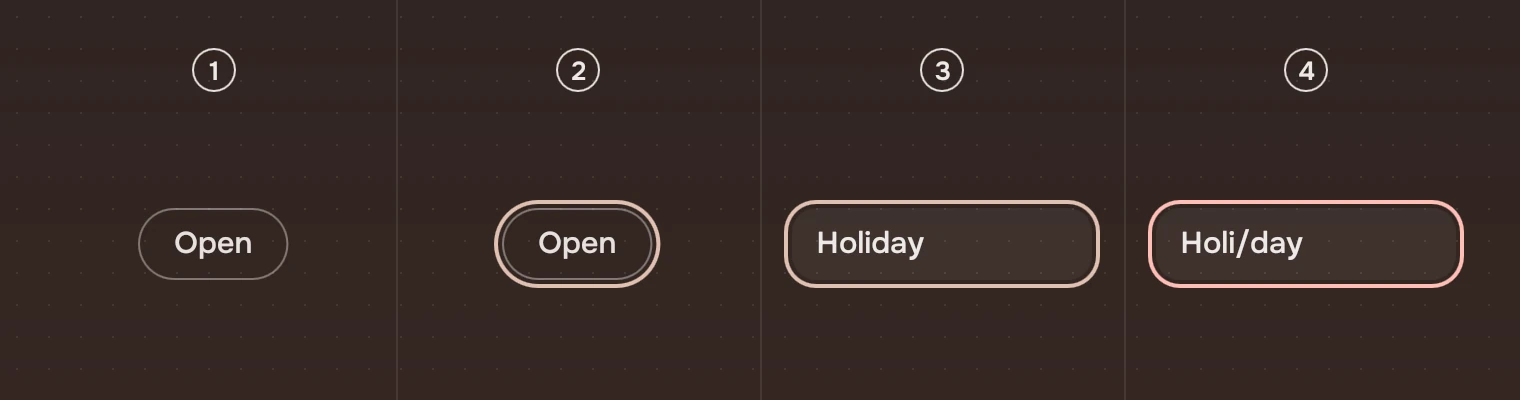
- Not shownThe part has the focus because the pointer put it there, or no key has been pressed yet.
- ShownThe first key press turns the ring on, for every part, until the next pointer press on a part.
- Field in useA field shows its ring whenever it has the keyboard, key or no key, as typing needs it.
- Field in errorThe same ring in the risk ink, and always shown.
The switch is Kit.focusVisible: a key pressed on any kit part sets it, and a pointer press on one clears it. A pointer press on something that is not a kit part leaves it as it was. States gives the ring with the washes.
Sizes
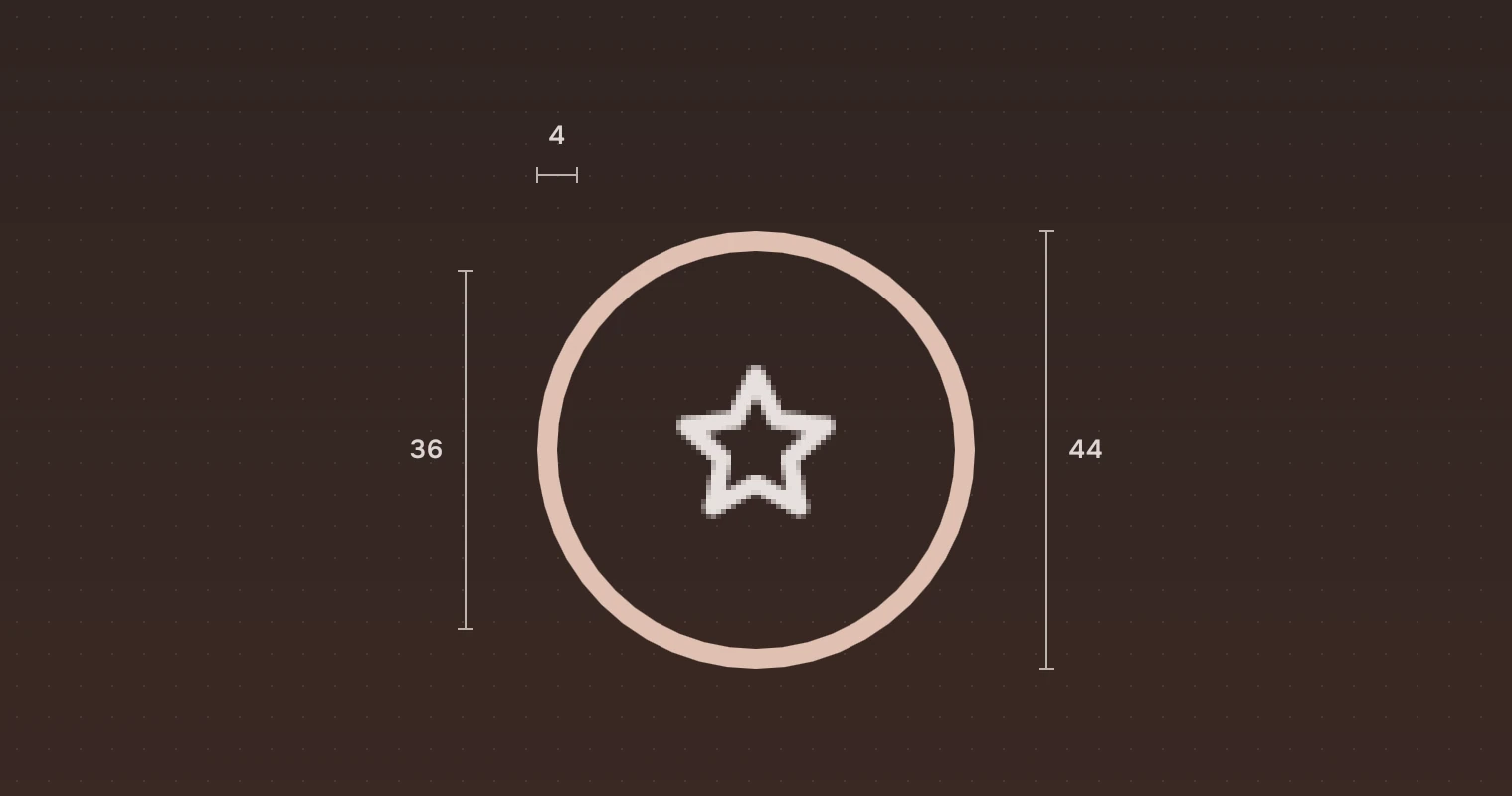
| Part | Value |
|---|---|
| Ring | 2 pixels wide, in the accent (state.focusRing) |
| Gap | 2 pixels (state.focusGap) |
| Reach | 4 pixels past the part on every side |
| Corner | The part's corner plus 4 |
Leave room for the ring: it is drawn outside the part, so a clip (a list's, a scroll view's) that sits on the part's edge cuts it off. The cover grid keeps 6 pixels inside its clip for this.
Keys and pointer
| Do this | To |
|---|---|
| Tab or Shift Tab | Move the focus to the next or previous part; the ring shows on it |
| Any key on a part | Show the ring, on the part that has the focus |
| Press the pointer on a part | Hide the ring; the focus stays where it is |
| First Tab in a window | Shows the ring on the part it lands on, if the app has called Kit.watchKeys(window) |
Accessibility
- The ring is for sighted keyboard users. A screen reader follows the focus itself, which each part names and gives a role, so it does not need the ring.
- Hiding the ring after a pointer press does not remove the focus: Tab and the arrows go on from the same place.
- The ring is outside the part, so the part's own wash and words stay as they are under it.
Do and don't


Code
import QtQuick
import Tacit.Kit

ApplicationWindow {
    id: window
    Component.onCompleted: Kit.watchKeys(window)    // the first Tab shows the ring

    Item {
        id: tile
        width: 120; height: 40
        activeFocusOnTab: true
        Keys.onPressed: Kit.focusVisible = true
        TapHandler { onTapped: Kit.focusVisible = false }
        FocusRing { shown: tile.activeFocus && Kit.focusVisible; corner: 8 }
    }
}
| Property or function | What it does |
|---|---|
shown | Whether the ring is drawn; usually activeFocus && Kit.focusVisible |
corner | The part's own corner radius; the ring adds 4 to it (the row's, 8, by default) |
Kit.focusVisible | The app's one switch: true from a key press on a part, false from a pointer press on one |
Kit.watchKeys(window) | Call it once for each window: a key nothing else handled, Tab included, turns the ring on |
Experimental, in Tacit.Kit 0.1.
Text and figures: CC BY 4.0. Tacit.Kit: LGPL-3.0 code, OFL fonts. The Tacit name.